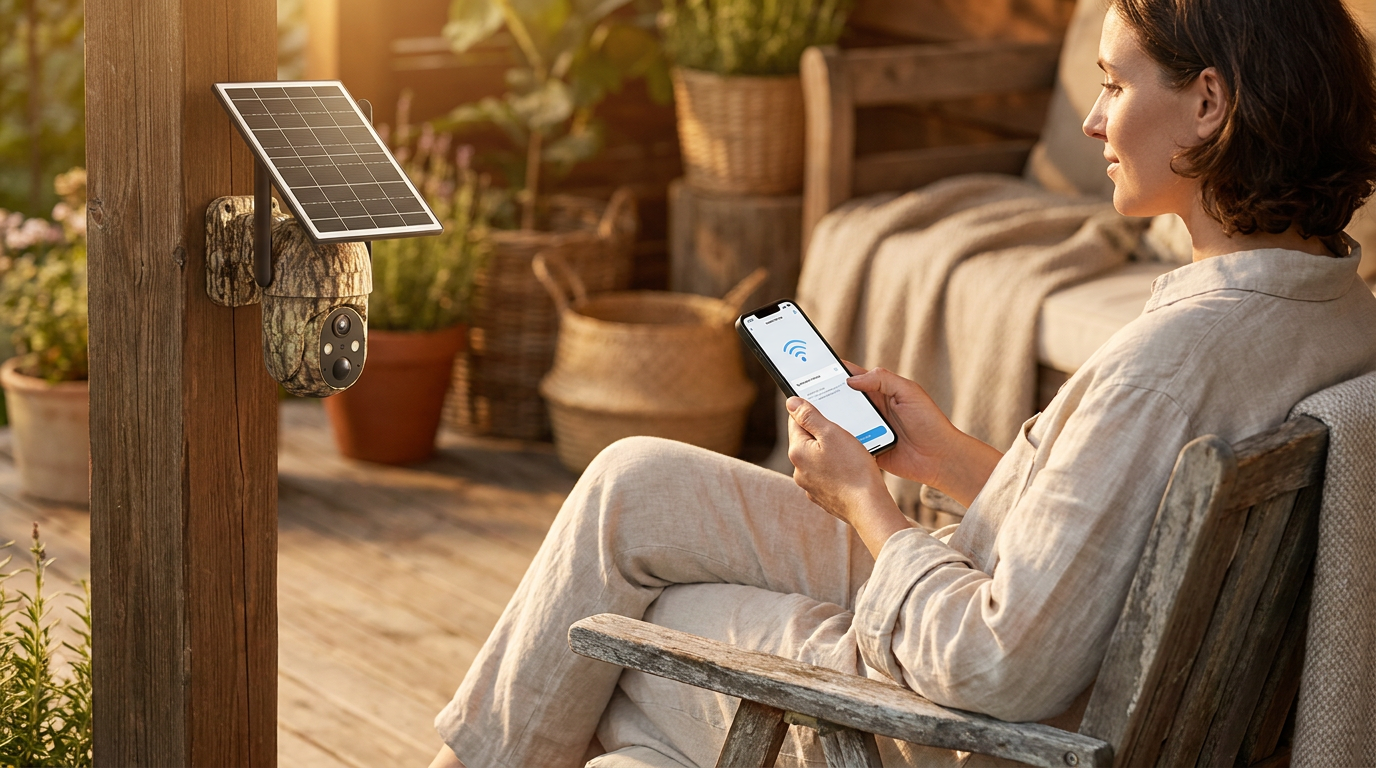
How do I fix Solar Watch Cam app connectivity issues?
 Maya ChenContributing Editor
How do I fix Solar Watch Cam app connectivity issues?
July 23, 2026 — Most Solar Watch Cam connectivity failures stem from incorrect network frequency selection or restricted mobile OS permissions rather than hardware defects.
Homeowners often assume that a low signal bar on their smartphone indicates a faulty camera module, but the reality is frequently found in the router’s administrative backend or the phone’s hidden permission silos. Maintaining a stable link between the hardware and the application is critical for real-time monitoring and alert reliability.
Why is my Solar Watch Cam failing to pair with the app?
The conventional wisdom says that simply restarting your phone will clear most pairing bugs, but this ignores the strict handshake protocols required for low-power IoT devices. Most pairing failures occur because the smartphone is connected to a 5GHz band while the camera requires a 2.4GHz frequency to establish its initial connection. Wyze support documentation for similar solar hardware emphasizes that users must verify that Location Permissions are enabled within the mobile device settings for the app to successfully scan for local hardware. If the app cannot "see" the device during the initial broadcast phase, the pairing sequence will timeout regardless of how many times the hardware is reset. Furthermore, the Cove Smart support team recommends keeping the camera in close proximity to the router during the initial setup phase to prevent packet loss during the firmware handshake. Once the pairing is secured, the device can be moved to its permanent exterior location as long as the signal remains above a -70 dBm threshold.
Why does my Solar Watch Cam keep going offline?
Photo by Matthew Jesús on Pexels
Here's the part nobody talks about: a solar camera that shows as "offline" in the app is often suffering from a depleted battery rather than a network outage. While these devices are designed for perpetual operation, extended periods of overcast weather or poor placement can lead to a critical voltage drop that shuts down the WiFi radio to protect the internal cells. A report from the Nestera user community highlights that even if a camera is attached to a solar panel, it may need to be brought indoors for a manual charge via a power point if the battery falls below a specific operational floor. Run the math: if your camera consumes more mah (milliampere-hours) during high-traffic motion events than the solar panel can generate in limited daily sunlight, the app will report a disconnection. To mitigate this, ensure you follow the Solar Watch Cam Installation Guide to verify the physical setup is sound. Proper orientation is non-negotiable; you must mount Solar Watch Cam for maximum sun to ensure the radio has the power required to maintain a persistent 2.4GHz uplink.
Quick answers
Q: Does Solar Watch Cam support 5GHz WiFi networks? A: No, the Solar Watch Cam requires a 2.4GHz WiFi frequency for operation because this band provides better range and penetration through exterior walls. Most modern routers allow for a guest network or a dedicated 2.4GHz SSID to accommodate this requirement.
Q: What should I do if the app says "Connection Timed Out" during setup? A: First, ensure your smartphone's Bluetooth and Location Services are active, then verify your WiFi password is under 31 characters without special symbols. Keeping the camera within 5 feet of the router during this specific step is mandatory for a successful handshake.
Q: Why am I not receiving push notifications on my phone? A: This is typically caused by the mobile OS putting the Solar Watch Cam app into "Sleep Mode" to save battery. You must go into your phone's App Settings and toggle "Allow Background Data Usage" and "Ignore Battery Optimization" for the app.
I'll change my mind when router manufacturers unify the 2.4GHz and 5GHz handshakes into a seamless protocol that doesn't require manual band steering for IoT devices. Until then, technical diligence remains the user's responsibility.
Learn more about Solar Watch Cam at https://solarwatchcam.com.
Sources
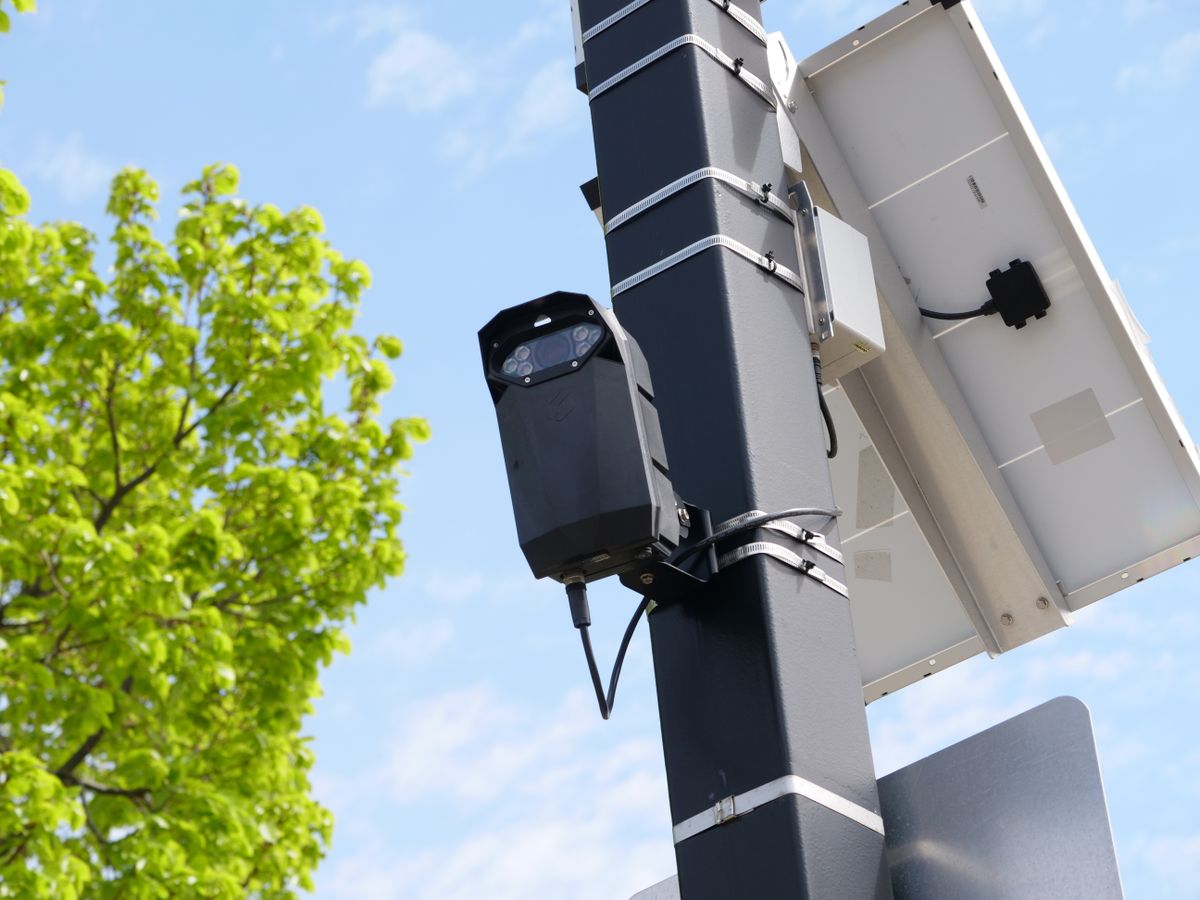
Photo by Giant Asparagus on Pexels
- Wyze Solar Cam Pan 2K Connectivity Troubleshooting
- Solar Cam Troubleshooting
- How to Pair Your Solar-Powered WiFi Camera with Your Phone